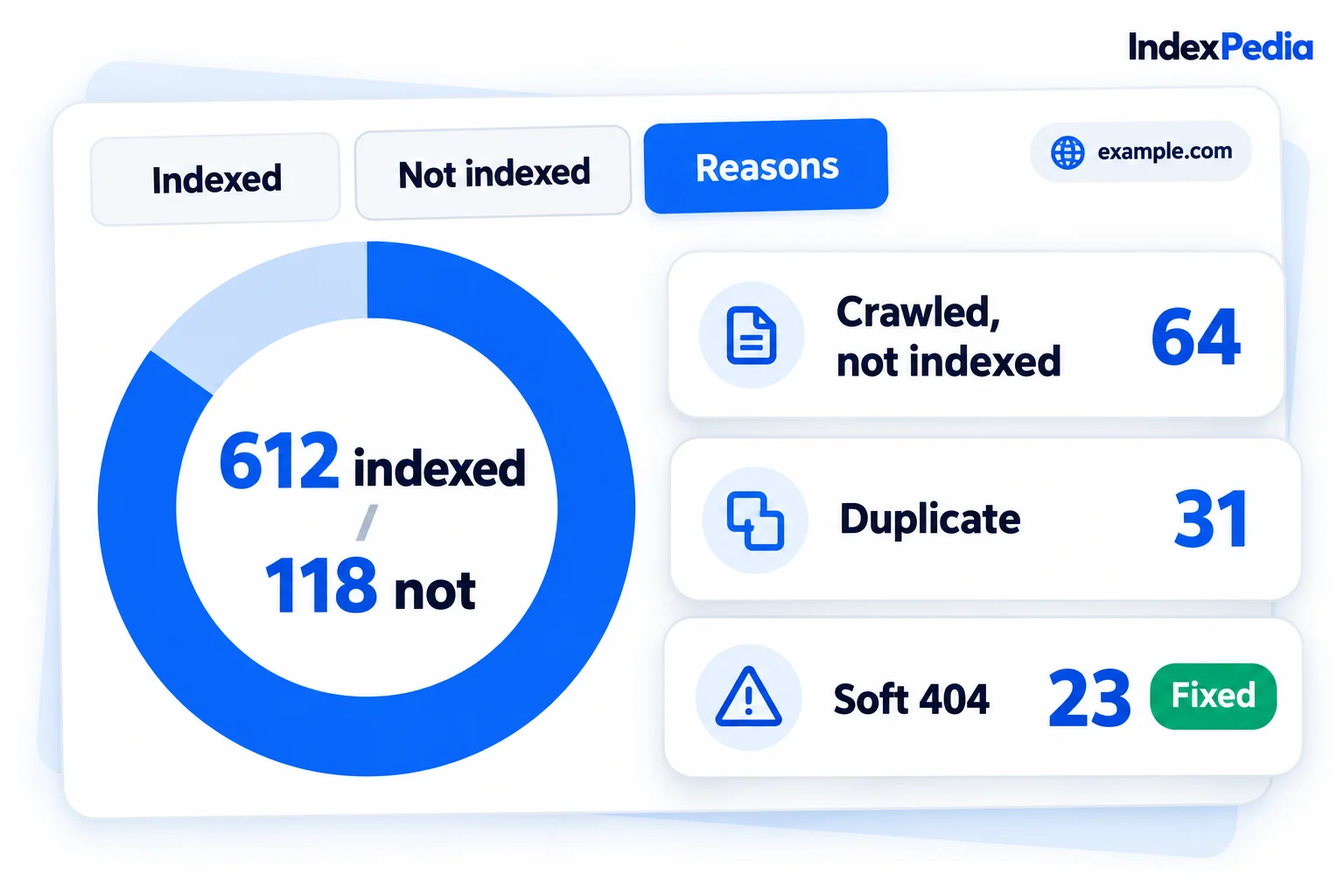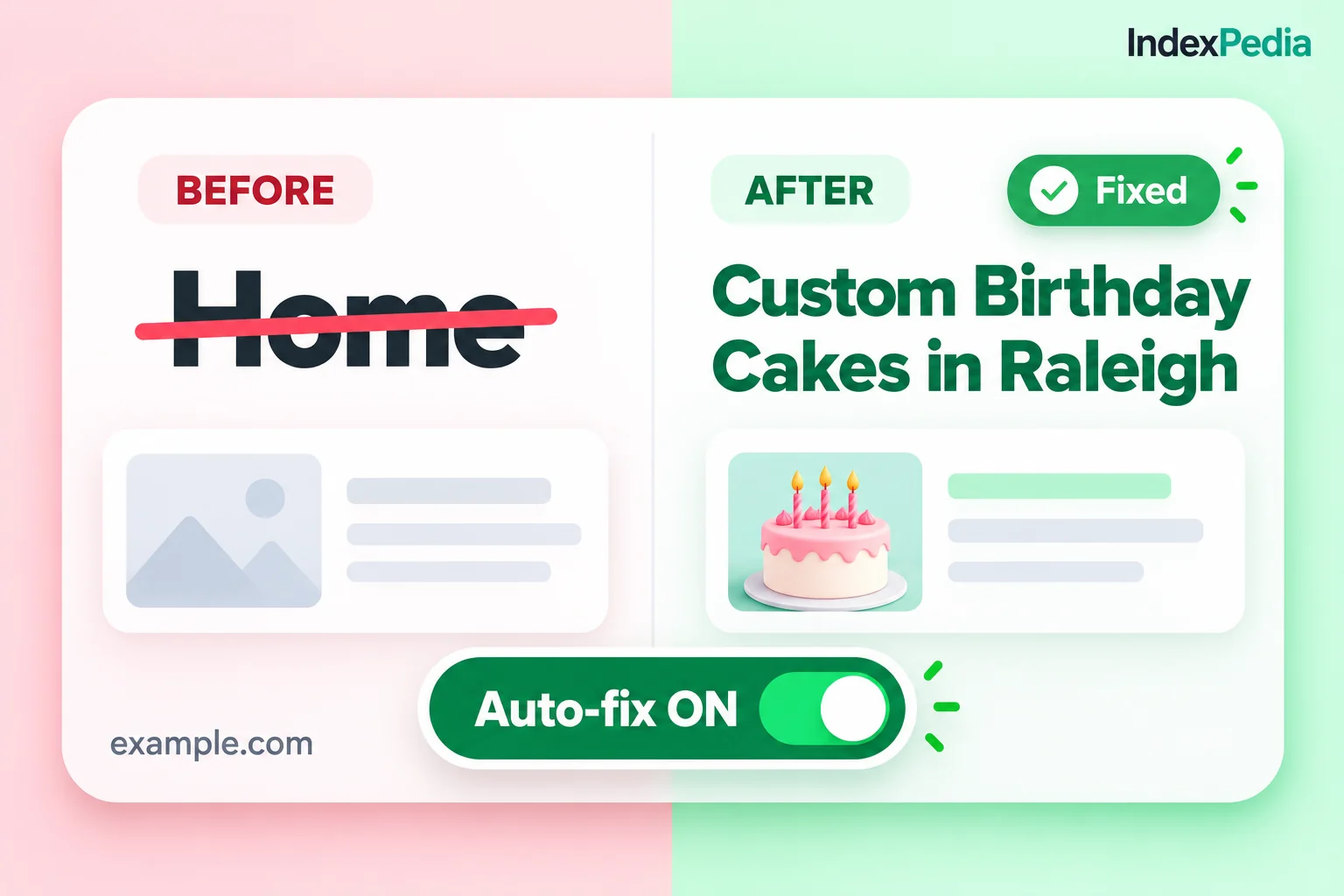
In this demo I take a real site from "2,230 problems" to "fixes live" without opening a template. We connect the site, read the Fixes page, check each page before and after, and then switch the fixes on one at a time. Every screen below is the actual app, running on example.com.
- Where in the app
- Your site, then Fixes
- Plan
- Pro $19/month or Agency $49/month
- Time it takes
- About 10 minutes the first time
- What you need
- Access to your site builder's header code, or WordPress admin
- Works on
- Any site builder, plus a WordPress plugin
What "before" looks like in search
Take Golden Crust Bakery, a bakery in Raleigh, NC. Years ago someone wrote its homepage title with every keyword they could think of, and the page has no meta description at all. This is what a customer sees in Google:
Golden Crust Bakery, Fresh Bread, Sourdough, Cakes, Cupcakes, Cookies, Pastries and Custom Wedding... (cut off before the word Raleigh, and under it a random line of menu text that Google picked by itself)
Golden Crust Bakery, Sourdough and Cakes in Raleigh (the full title fits, and under it a clear description: fresh sourdough, pastries and custom cakes baked daily in downtown Raleigh, open Tuesday to Sunday)
The title is the blue headline and the description is the gray text under it. Together they decide whether someone clicks you or the bakery below you. AI search tools read the same two lines as a quick summary of the page, so a clear title also helps ChatGPT search and Copilot match the page to the right question.
On most builders, fixing them means editing each page by hand. Auto-fix does it from one screen.
The demo, screen by screen
The whole flow takes four screens, shown in the steps below. After that I go through each one in more detail.
- 1Connect your website
Open Connect website. The steps at the top show Site added, Connect your website done, and Switch on fixes still to go. A green box confirms that example.com is connected and there is nothing else to install. The button below says Next: review fixes.
- 2Open the Fixes page
The cards at the top sum up everything ready for this site: Fix Kit 7, Auto-fixes 2,230 with 0 switched on, Clean sitemap 23,297 of 23,336, and a check mark for Website connection. The banner says 2,230 fixes are ready, none are live yet.
- 3Check pages before and after
Scroll to Your pages: before and after. Each row shows the page, the old value struck through, the new value in green, and a status. Use the chips to filter by Fixed, Ready or Need action.
- 4Review and switch on titles
Open the Auto-fix titles list. Each row has the old title, an editable new title with a Save button, a Suggested badge and an on/off switch. Switch all on and All off sit at the top.
The first time I show this to someone, I tell them to skip Apply all and switch on just their homepage title. Watch it go live, look at the page, then come back for the rest. It builds trust in the tool fast.
Connecting the site comes first
Nothing changes on your pages until IndexPedia can reach them. You can connect in one of two ways, and either takes a few minutes.
The first is the IndexPedia tag, one line you paste into the header code box of your site builder. The Connect page shows the exact steps for Wix, Squarespace, GoDaddy, Shopify, Webflow, Square Online and Google Tag Manager, and any builder with a "custom code" or "code injection" box works the same way. Copy the line from your dashboard, paste it, and save.
The second is the WordPress plugin. You download a plugin made for your site, upload it, and press Activate, with nothing to type.
When the tag or plugin checks in, the screen turns green to say example.com is connected and there is nothing else to install. IndexPedia reports a fix as live only after it sees your site checking in, so it can't mark a fix live by mistake.
Under the main steps are two optional extras:
- Send pages to Bing turns on IndexNow, which sends the pages you fix to Bing, Yandex, Seznam, Naver and Yep as soon as they change. IndexNow: get pages into Bing in minutes covers it in more detail.
- Connect Google Search Console adds Google's own indexing data to your account, read-only.
Auto-fix needs neither, but I turn both on.
Reading the Fixes page
Press Next: review fixes and you land on the Fixes page. The four cards at the top summarize the whole site:
- Fix Kit 7 counts the files the Fix Kit wrote from your pages, such as robots.txt, llms.txt, Organization and WebSite schema, and a clean sitemap. You can copy or download them.
- Auto-fixes 2,230, 0 switched on counts every title and description fix IndexPedia can apply for you. None are live yet, and none will be until you say so.
- Clean sitemap 23,297 of 23,336 is a sitemap IndexPedia built with only the pages that can be indexed. Here it kept 23,297 of the 23,336 addresses and left out the ones that redirect, fail or say noindex.
- Website connection has a check mark when the tag or plugin is working.
Under the cards, a banner says 2,230 fixes are ready and none are live yet. Its Apply all fixes button switches on every fix at once. Like every switch in Auto-fix, it asks you to confirm first and tells you what will happen.
We find it, we fix it, you see Google take it
Before and after, page by page
The Your pages: before and after table lists every page with a change waiting.
Each row has four columns. Page is the address, Before is the current title or description struck through, After is the new one in green, and Status says where that fix stands.
The chips at the top filter the table:
- Fixed shows pages where the new version is already live.
- Ready shows fixes that are written and waiting for your switch.
- Need action shows pages where IndexPedia needs something from you, so you can deal with those first.
A typical row for the bakery looks like this:
Custom Wedding Cakes, Birthday Cakes, Cupcakes and Dessert Tables for Every Event in Raleigh and Durham NC (struck through, too long to show in full)
Custom Wedding and Birthday Cakes in Raleigh (in green, short enough to show in full, brand and city kept)
Titles longer than search engines show get shortened, with your brand kept. Pages with no meta description get one written from the page's own text instead of a template, so the bakery's cake page gets a description about cakes in the words already on that page.
Sort out the Need action rows first. Those are the pages waiting on you, so clearing them keeps the rest of the list moving.
Switching titles on, one by one
Fixes go live from the Auto-fix titles list.
Each row has the old title on the left and the new title in an editable box in the middle, with a Save button next to it. If you don't like a word, change it and press Save. A Suggested badge marks the titles IndexPedia wrote, so you can tell them from the ones you edited. The on/off switch is on the right.
When you flip a switch, a small confirmation explains what will happen: this title will replace the current one on that page, visitors and search engines will see it, and you can switch it off at any time. Press confirm and the change goes live within 5 minutes.
Two bulk buttons sit at the top of the list. Switch all on turns on every title in the list after a confirmation, and All off turns them all off again.
To undo a fix, switch it off, and the original title comes back on the next page load. You have nothing to restore, because Auto-fix never changes your files or your database. It replaces the title, sets the description tag or adds schema in the page head, and passes the rest of the page through unchanged.
Here's what I check after switching on a title. I open the page in a new tab, look at the browser tab text, and confirm the new title is there. Takes ten seconds and you'll know it's live.
Confirm the dialog. The new title or description is live on the page within 5 minutes, and the row moves to Fixed.
Confirm the dialog. The original returns on the next page load. Nothing in your site files was ever changed.
Everything Auto-fix does
Finds titles longer than search results show and writes a shorter one that keeps your brand and place.
Your full headline shows in Google, so people see the city and the brand before they click.
Writes a meta description from each page's own text for pages that have none.
Google stops filling the gap with menu text, and your result reads like a short pitch.
Adds schema markup to your homepage where it is missing.
Search engines and AI tools can read your business details directly.
Every fix waits for you. Edit the wording and press Save before anything goes live.
You decide every word customers see.
Shows every page with the old value struck through and the new one in green, filtered by Fixed, Ready or Need action.
You see the effect across the whole site in one place.
Each switch, including Apply all and Switch all on, asks you to confirm and explains what will happen.
No fix goes live by accident.
Switch a fix off and the original returns on the next page load.
You can try a new title and take it back.
One line, the IndexPedia tag, on any site builder, or the WordPress plugin.
You need no developer and no theme edits, so fixes survive theme updates.
What changes for you
Cut-off titles and made-up descriptions cost clicks even when you rank. Fixing them across every page in an afternoon, with no developer bill, gets more visits out of the rankings you already have.
Every page gets a title that fits and a description written from its own text. The changes live outside your theme, so a theme update can't wipe them, and switching off restores the original.
Clear, consistent titles and descriptions across thousands of pages tell Google and AI tools what each page is about, and Google is less likely to rewrite titles that already fit.
After the switch
Once a fix is live, Google and Bing pick up the new title the next time they crawl the page, which on a small site can take a few days to a few weeks. With Send pages to Bing switched on, Bing hears about the change much sooner.
To understand the files on the Fix Kit card too, read robots.txt, llms.txt and schema fixes explained.
We find it, we fix it, you see Google take it
FAQ
Do I need to know code to use Auto-fix?
No. You paste one line, the IndexPedia tag, into your site builder's header code box, or you install the WordPress plugin. Everything after that happens in your dashboard with switches and Save buttons.
What happens when I flip a switch?
A confirmation explains what will change on that page. Once you confirm, the new title or description goes live within 5 minutes and the row moves to Fixed in the before and after table.
How do I undo a fix?
Switch it off and confirm, and the original returns on the next page load. Auto-fix never changes your files or database, so there is nothing to restore.
Can I change the wording IndexPedia suggests?
Yes. Every new title sits in an editable box with a Save button. Fixes you haven't edited carry a Suggested badge, so you can always see which ones are yours.