Hi, I'm on the IndexPedia team, and in this post I'll take you through a real site scan from start to finish: typing a domain, watching the report come in, going through each part of it, and ending with the ready-made fixes. Our example is Golden Crust Bakery, a bakery in Raleigh, NC, with its site at example.com.
- Where in the app
- /tools/site-scan, or Tools in your dashboard
- Plan
- Free, no account needed
- Time it takes
- About 20 seconds
- What you need
- Just your domain
- Works on
- Any website, any builder
The full tour, from domain to fixes
These are the steps of the whole scan, in the order you'll see them on your own screen.
- 1Type your domain
Open /tools/site-scan and type example.com into the bar. There's nothing else to fill in, so no account, email or card. Press the button and the scan starts right away.
- 2Watch it check live
The scan reads every sitemap file on the site and picks pages from each kind: the homepage, the menu, the cake pages, the blog posts. It loads each one for real, one at a time, the way a polite crawler would, and reads robots.txt the way each AI crawler does. For most sites this takes about 20 seconds, and you can leave and come back to the link.
- 3Read the two scores at the top
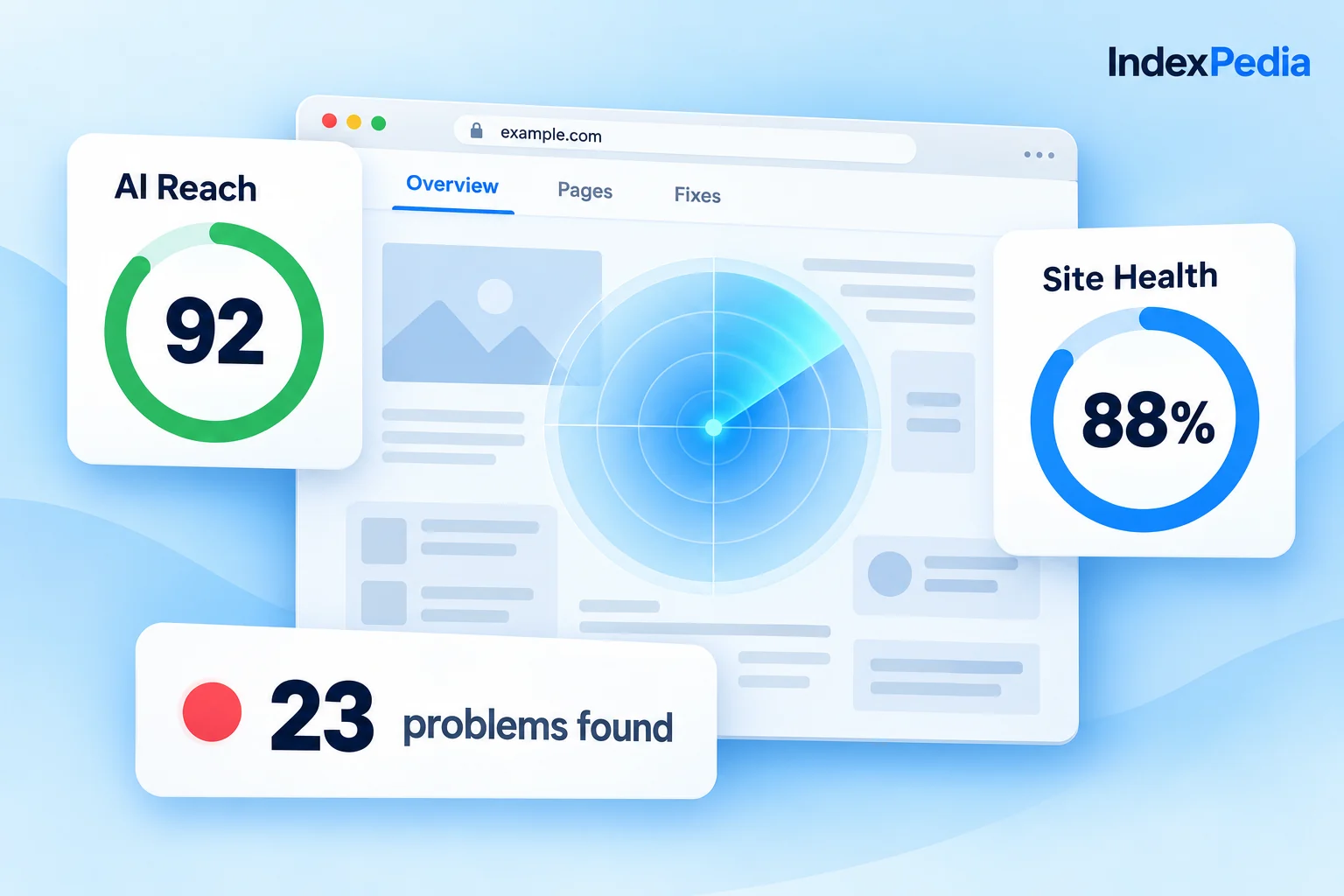
The report opens with two big numbers. On the left is AI Reach, 92/100 for the bakery, and under it AI crawlers allowed reads 9/9 and readable without JavaScript reads 5/5. On the right is Site Health at 86%, with 3 pages with errors and 5 with warnings. Below that you see 41 pages in the sitemap and 8 estimated with problems.
- 4Scan the problem rows
Under the scores, each problem gets its own row with a count. Here we have Thin content on 3 of 30 pages, Missing canonical on 2 of 30, and Title too long on 4 of 30. The "of 30" is the sample: the scan checked 30 pages chosen from every part of the sitemap. Click a row to see which pages it found.
- 5Check the AI Reach details
The AI Reach details show the 92 again, with breakdown bars for what the score is made of. Below them is the Each AI crawler table, with one row per bot showing whether robots.txt lets it in.
- 6Scroll to the fixes
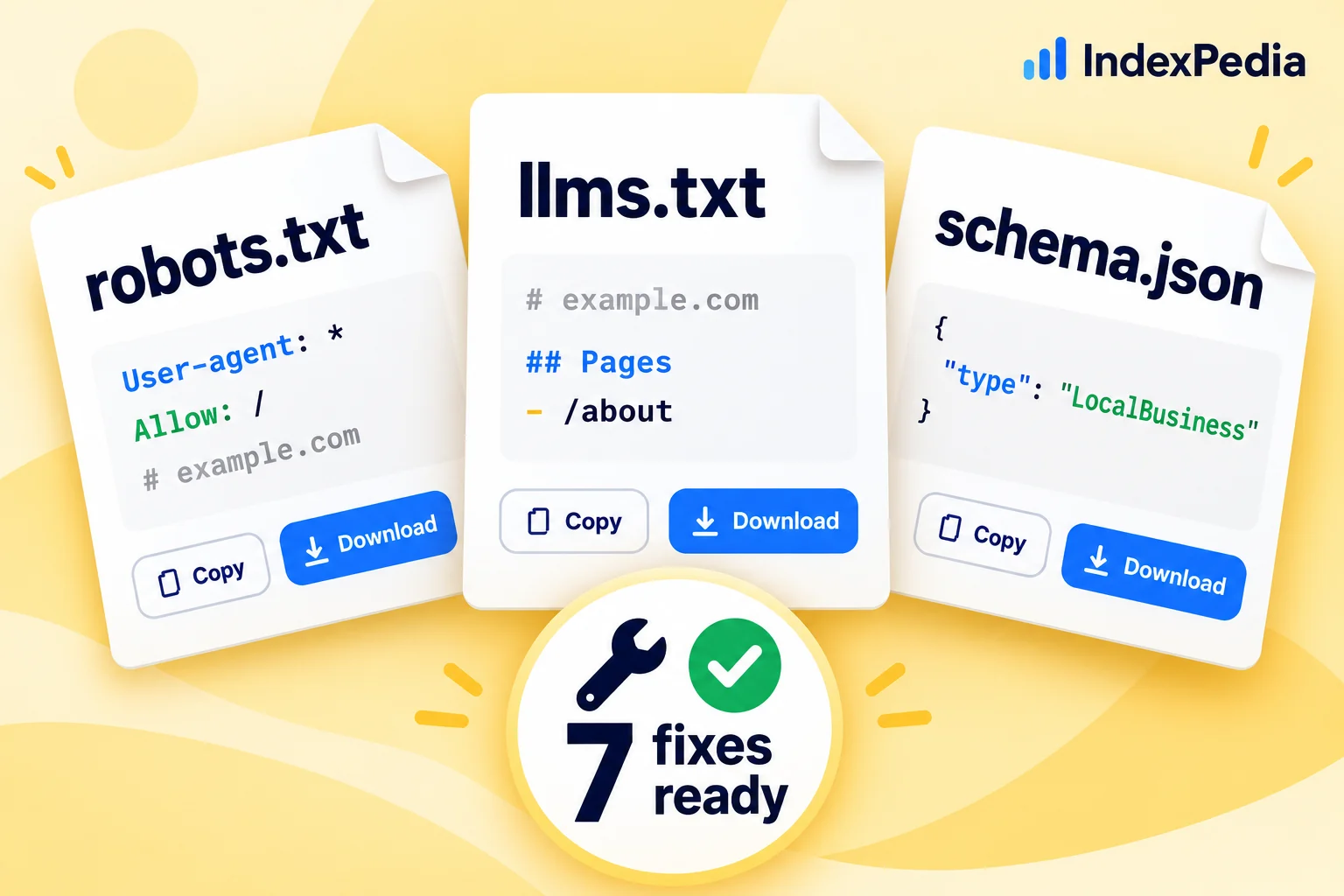
At the bottom is Fixes ready for you, where the scan has written a corrected robots.txt, an llms.txt built from the site's own pages, business schema, and new titles and descriptions for the pages that need them. Each one has a Copy button and a Download button.
- 7Keep, share or track
Back at the top are three buttons. Rescan runs it again after you fix something. Copy link gives you a report link to send to your web person. Track this site free creates a free account that checks the site every week.
The first thing I look at on any report is the AI crawlers allowed number. If it's anything less than all of them, I fix that before I touch a single title, because nothing else helps a page a crawler can't reach.
Reading the two scores together
AI Reach and Site Health answer two different questions. AI Reach asks whether AI search tools can get in and read your pages. Site Health asks whether the pages are in good shape once anyone gets in.
Golden Crust scores well on reach. All 9 AI crawlers are allowed, and all 5 pages tested could be read without running JavaScript. That second number matters because many AI crawlers do not run JavaScript, so if your text only appears after scripts load, they see an empty page.
Site Health at 86% is good but not perfect. Every page in the sample is marked fine, warning or error, and pages with errors count three times as much as pages with warnings, so 3 error pages pull the score down more than 5 warning pages do. The report lists which pages made the score, so you can check the math yourself.
What the problem rows mean
Each row is one kind of problem, tied to real pages.
- Thin content (3 of 30) means these pages have very few unique words. Most of their text is template: menus, footers and the same ordering note on every cake page. Google often reports pages like this as "Crawled - currently not indexed". If that status sounds familiar, read Why Google is not indexing your pages.
- Missing canonical (2 of 30) means these pages have no canonical tag, the tag that tells search engines which address is the main version of a page.
- Title too long (4 of 30) means the title runs past the roughly 50 to 60 characters Google shows, so it gets cut off in results.
The "8 estimated with problems" line uses what the sample found to estimate how many of the 41 sitemap pages are likely affected. Problems usually hit a whole page type at once, so a sample from every type finds them fast.
See what keeps your site out of Google and AI answers
Running it from inside your account
You don't have to go to the public page every time. Once you have an account, the same scan is on the Tools page in your dashboard. Type a domain there and the report opens just like the one above.
If you look after more than one site, you can scan a new client's domain from the same place you track your own.
The fixes, file by file
The bottom section of the report goes past listing problems: the scan writes the files that fix them. Each file does one job.
- robots.txt is a corrected version that keeps search and AI crawlers allowed and points to your sitemap.
- llms.txt is a plain text file, built from your own pages, that lists your most useful pages for AI tools. It's a proposed standard and cheap to add, so treat it as a bonus and don't expect it to fix much by itself.
- Business schema is Organization and WebSite schema for your homepage, so machines read your name and site details without guessing.
- Titles and descriptions means shorter titles for the 4 pages that run long, and new descriptions for pages that lack one.
A corrected robots.txt for the bakery looks like this:
User-agent: *
Allow: /
Disallow: /cart/

User-agent: OAI-SearchBot
Allow: /

User-agent: PerplexityBot
Allow: /

Sitemap: https://example.com/sitemap.xml
You can paste these in by hand, or let Auto-fix apply titles, descriptions and schema for you. Auto-fix works on any site builder with one line, the IndexPedia tag, or with the WordPress plugin, and changes go live within 5 minutes. For a line by line look at each file, see robots.txt, llms.txt and schema fixes explained.
Fix one page type at a time, then hit Rescan. If the Thin content row drops from 3 to 0, you know the fix worked before you spend time on the next row.
Everything the scan does
Here is every feature of the scan in one place.
Reads every sitemap file and picks pages from each type: products, posts, locations, profiles. Checks 30 of them live.
Finds problems that only live in one template, not just on your homepage.
Reads robots.txt the way each crawler does and tests 9 AI crawlers, including GPTBot, OAI-SearchBot, PerplexityBot and ClaudeBot.
Shows if Google can read a page that ChatGPT search cannot.
Checks whether page text is there before any script runs.
Catches pages that look fine to you but empty to AI crawlers.
Measures words and unique words on every page in the sample.
Points to the top reason for "Crawled - currently not indexed".
AI Reach and Site Health, with breakdown bars and the pages behind each number.
You can see why a score is what it is, and track it after fixes.
Status, load time, title, description, headings, canonical, noindex and schema for each page.
Every finding is tied to a page.
robots.txt, llms.txt, Organization and WebSite schema, titles and descriptions, with Copy and Download.
Turns findings into files you can use today.
Copy link for a shareable report. Track this site free for weekly checks.
Send it to your developer, and keep watching the site over time.
The scan only reads public pages. It doesn't log in, submit forms or change anything on your site.
What it changes for you
You find out why customers searching "custom cakes Raleigh" can't find your cake pages, and you get the fix the same day without paying anyone to audit the site.
Every page type gets checked for thin text, missing canonicals, long titles and blocked crawlers, and you get the corrected files to paste in or apply with Auto-fix.
Clean robots.txt rules, clear schema and fewer weak pages build a steady record with Google and AI tools, so a few pages don't drag your whole domain down.
Where to go after the scan
Your scan tells you whether AI crawlers can read your site. Whether AI actually recommends you is the next question, and the AI Visibility Check answers it by asking ChatGPT search the questions your customers ask and showing who it names. It's free and takes about a minute.
If you want to know what to look for in that report, read Does ChatGPT recommend your business?.
After a scan I fix access first, then the error pages, then thin content, then titles. Then I run an AI Visibility Check to see whether AI tools actually recommend the site.
Free scan or an account?
The free scan is the full scan, with every score, every row and every fix, and you can run up to 5 scans an hour without an account.
Click Track this site free and a free account checks one site every week. Pro at $19 a month checks more pages and more sites, every day. Agency at $49 a month is for people who look after many sites.
See what keeps your site out of Google and AI answers
FAQ
Is the IndexPedia site scan really free?
Yes. You can run up to 5 scans an hour without an account and get the full report, both scores and all the ready-made fixes. A free account adds one site that IndexPedia checks every week.
What does "of 30" mean in the problem rows?
The free scan checks a sample of 30 pages picked from every part of your sitemap. "Thin content 3 of 30" means 3 of those 30 pages had the problem. The "estimated with problems" line uses the sample to estimate how many of all your sitemap pages are affected.
What is the difference between AI Reach and Site Health?
AI Reach shows whether AI crawlers are allowed in and can read your pages without JavaScript. Site Health shows the condition of the pages themselves, based on how many have errors or warnings. You want both to be high.
Will the scan change anything on my site?
No. It only reads public pages, one at a time, like a polite crawler, and never logs in, submits forms or edits your site. Changes only happen if you paste in a fix or turn on Auto-fix.