The free Log Analyzer turns your server log into a report you can read. Below I'll show you where to find the file and how to upload it, then go through the AI crawler report with you one section at a time. It takes a few minutes and you don't need an account.
- Where in the app
- /tools/log-analyzer
- Plan
- Free, no account needed
- Time it takes
- A few seconds for most logs
- What you need
- Your access log, up to 50 MB
- Works on
- nginx, Apache and LiteSpeed logs, plain or .gz
Your web server writes one line for every request it gets: the address, the page, the time, what it answered, and the name the visitor gave. Over time that file becomes a full history of which AI crawlers read your site. Google Analytics can't show you this, because bots never run analytics code, but the log records every request.
Get the report in three steps
- 1Find your access log
On shared hosting with cPanel, open Metrics, then Raw Access, and download the last few days. In Plesk, open your domain and go to Logs. On your own server, the file is usually /var/log/nginx/access.log or /var/log/apache2/access.log. Older days are often saved as .gz files, and those work too.
- 2Upload the file
Open the Log Analyzer and drop the file on the upload box. Plain .log and compressed .gz files both work, up to 50 MB. One to seven days of log is usually enough.
- 3Wait a few seconds
A progress screen shows each step while the file is read line by line. Most logs finish in seconds, and you can leave and come back to the report link.
- 4Read your report
The AI crawler report opens with the headline numbers at the top, the bots below them, and plain advice on what to fix.
If your host's panel confuses you, ask support for "raw access logs in combined format". That exact wording gets you the right file almost every time.
The file is read once to build your report and then deleted. Only the counts are kept, so your report link keeps working. If you choose to, anonymous totals with no addresses, pages or site name are added to the public AI Crawler Radar.
Reading the report, top to bottom
This is the report for example.com, the site of Golden Crust Bakery in Raleigh, NC. I'll go through it the way I would if you were sitting next to me.
The headline row
Across the top are six numbers, and each one answers a single question.
Requests (1,808) counts every line in the log that came from a known AI or search crawler. People and other traffic are left out, so this number is only bots.
Verified real (1,642) counts requests whose IP address is on the list the crawler's owner publishes, or that passed the owner's reverse DNS check. These are the real GPTBot, the real Googlebot and so on. Most of the gap between this and the requests number comes from crawlers whose owners don't publish a way to check them yet, so they can't be confirmed either way.
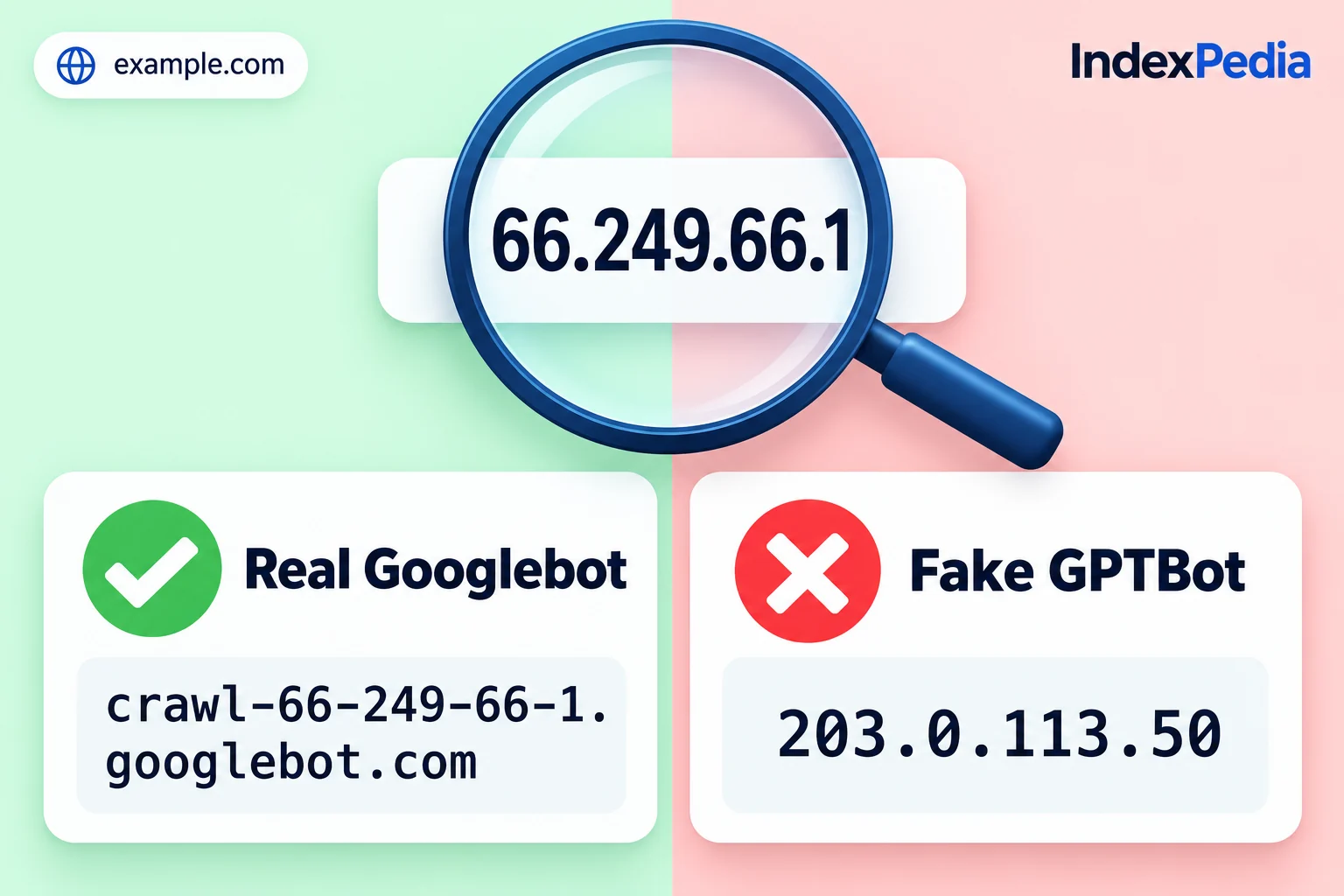
Fake bots (1) is a request that used a famous crawler name but came from an address the owner doesn't use. One is low; some sites see hundreds.
Blocked by your server (2) counts requests your server refused with a 403 or a firewall block. Two isn't many, but find out which bot it was. If it's a crawler you want, like PerplexityBot, that's a problem.
Missing pages (14) are requests for pages that returned 404. Crawlers are following old links or sitemap entries to pages that no longer exist.
Visits from AI (0) counts people who clicked a link in an AI answer and landed on the site, found from the referrer. Zero means no one arrived from ChatGPT, Perplexity, Gemini or Copilot during the days in this log.
The per-bot list
Below the headline row is a list of every crawler in the log with its own request count, grouped by company: OpenAI, Anthropic, Perplexity, Google, Microsoft, Apple, Meta and others.
Use it to check that the crawlers you care about showed up. For AI search, look for OAI-SearchBot, PerplexityBot and Claude-SearchBot. For Google and Bing, look for Googlebot and Bingbot. If one you expected is missing, it either never came or something stopped it.
My habit is to look for the AI search crawlers first, then the blocked number. A real search crawler being blocked is the most common reason a site never shows up in AI answers.
See every AI crawler in your server log
The "What this means" cards
This is my favorite part of the report. It explains the numbers in plain English, one card per finding, and color codes each card so you can see at a glance what needs attention.
- Red cards are problems to fix now, such as a real crawler being blocked by your server or a fake bot scraping your pages.
- Orange cards are worth a look soon. Missing pages that crawlers keep asking for land here, like the 14 in this report.
- Blue cards are information about your traffic, like having no visits from AI yet, and don't point to an error.
Each card says what was found and what it means for your site. Read the red ones first, then work down.
Pages AI crawlers read most
Under the cards is a list of the pages crawlers asked for most. Each row shows the page path, how many requests it got, and which bots read it.
For Golden Crust, you'd hope to see the home page, /menu, the sourdough page and /catering near the top. If the list is full of /wp-login.php, old plugin folders or tag pages instead, crawlers are spending their visits on pages that will never help you.
Check the bot names as well. A page read only by training crawlers like GPTBot is in a different position from one read by OAI-SearchBot or PerplexityBot, because the search crawlers are the ones that put pages into AI answers today.
Also look for what's missing. If the page you most want in AI answers isn't on this list at all, start your fixes there.
Everything the Log Analyzer checks
Goes through every line of an nginx, Apache or LiteSpeed log, plain or .gz, up to 50 MB
Hundreds of thousands of lines become one short report
Finds GPTBot, OAI-SearchBot, ClaudeBot, PerplexityBot, Googlebot, Bingbot and more, grouped by company
You see who reads your site
Checks each crawler visit against the official IP lists, or by reverse DNS
Fake bots are caught, and your counts are honest
Counts 403s and firewall blocks per bot
You find real crawlers your site turns away by mistake
Lists the 404s crawlers ran into
You can add redirects so crawlers stop wasting visits
Finds people who arrived from ChatGPT, Perplexity, Gemini and Copilot, from the referrer
You see if AI answers send real customers
Ranks pages by crawler requests, with bot names
You know which pages AI tools care about, and which they skip
Keeps the report at a link after the file is deleted
You can send it to your web person or developer
What to do with what you found
Each number on the report points to a next step. This is how I'd handle each one.
A real crawler is blocked
Check your security plugin, your host's firewall and your robots.txt. Many WordPress security plugins have a "block AI bots" switch that's easy to leave on, so allow the AI search crawlers you want. The Fix Kit writes robots.txt and llms.txt files for your site, and our guide to robots.txt, llms.txt and schema fixes explains each rule.
You have fake bots
Block them by IP address in your firewall or hosting panel. Never block by name, because the real crawler uses the same name. If you want to double check one address first, paste it into the free Bot checker.
location / {
    deny 203.0.113.50;
}
Crawlers hit missing pages
Find the 14 paths in your log that returned 404, redirect each one to the closest live page, and remove any dead entries from your sitemap. Crawlers then stop wasting visits, and the pages that matter get read more often.
Your best pages aren't on the list
Link to them from your menu or home page, and make sure they're in your sitemap. Pages buried three clicks deep with no internal links often never get crawled.
Visits from AI is zero
That's normal for many small sites. It usually means AI tools aren't recommending you yet, rather than that something is broken. The AI visibility check asks ChatGPT search about your business and shows whether you come up.
One crawler blocked by a security plugin, 14 dead links, and no idea which pages AI read.
Real search crawlers allowed, 404s redirected, the fake address blocked by IP, and the catering page linked from the home page.
Keep watching, without uploading again
A log only covers the past. Run the Log Analyzer again a week after any fix and compare the two reports; that's the easiest way to confirm a blocked crawler is now getting through.
If you'd rather not download logs at all, set up the AI crawler tracker. One snippet records every verified crawler visit and every visit from AI, every day, on a live dashboard. It's free for one site, and our tour of which AI crawlers visit your site shows every screen.
What it does for Golden Crust
Golden Crust learns in minutes whether ChatGPT and Perplexity can read the menu and catering pages, without paying anyone to dig through a log.
Blocked crawlers, fake bots and 14 dead links each show up with a plain explanation, so the fixes are clear and quick.
With real search crawlers let in and broken paths fixed, AI tools and Google find a clean, reachable site every time they visit.
See every AI crawler in your server log
FAQ
Where do I find my access log?
In cPanel, look under Metrics, then Raw Access. In Plesk, open your domain and go to Logs. On your own server it's usually /var/log/nginx/access.log or /var/log/apache2/access.log.
Which log formats does the Log Analyzer read?
It reads the standard combined format used by nginx, Apache, LiteSpeed and most hosting companies. You can upload a plain .log file or a compressed .gz file, up to 50 MB.
Why is verified real lower than total requests?
Some crawlers come from owners that don't publish an IP list or DNS method yet, so they can't be confirmed. Those visits are counted as neither real nor fake. Only visits that fail an official check count as fake.
What do the red, orange and blue cards mean?
Red cards are problems to fix now, such as a real crawler being blocked. Orange cards are worth a look soon, like missing pages. Blue cards are information, such as having no visits from AI yet.